You can configure settings such as Duration, Assignment labels, and Manuals on Execution Nodes. This article summarizes the items that can be set on nodes and edges, and their respective limits.
Overview
Node settings are made from the detail sheet that opens when you click a node. The detail sheet is displayed inside the process editing area, so you can operate the header while it remains open. Press the Esc key to close it.
Specifications
Items that can be set on Execution Nodes
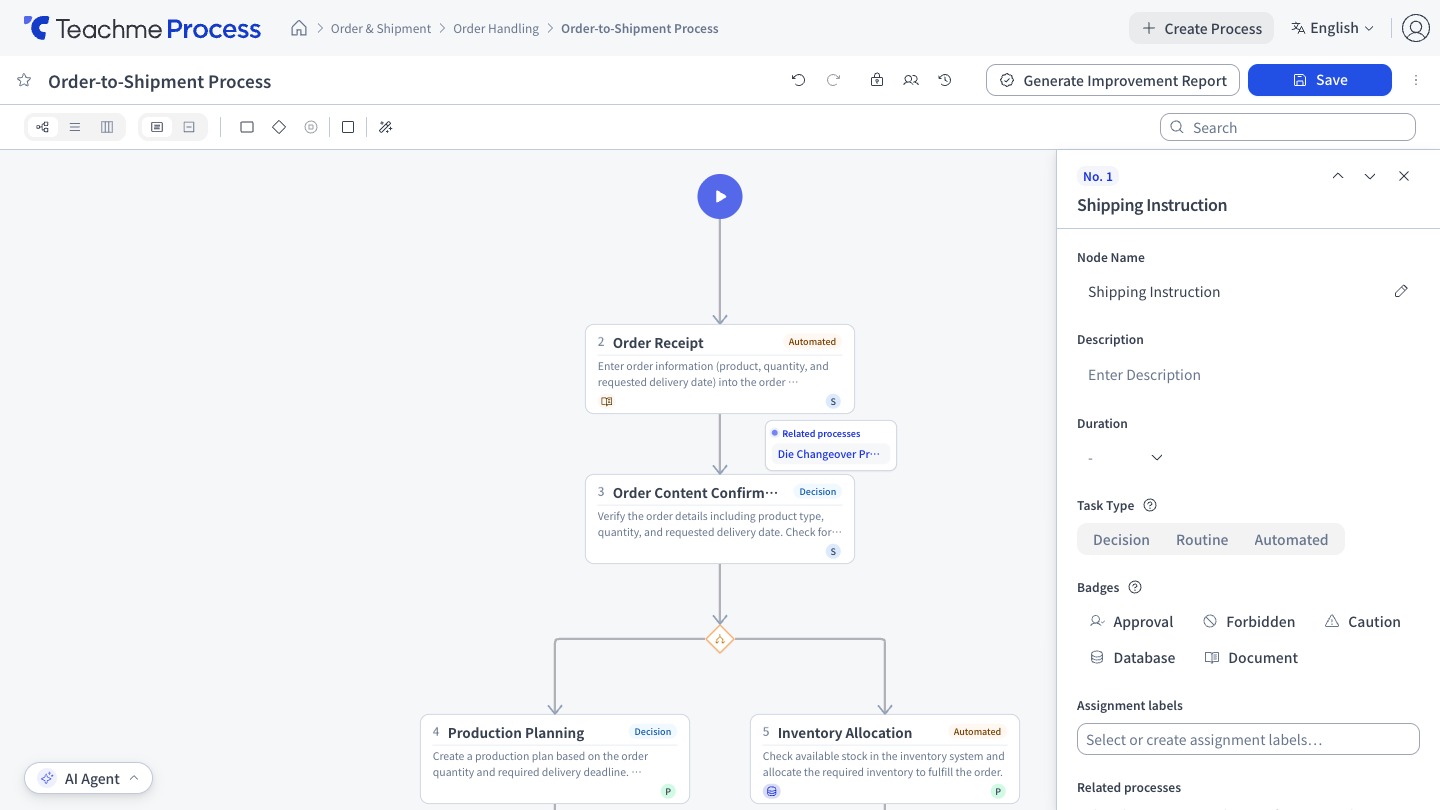
- Node Name
- Description…Displayed in abbreviated form on the process diagram; the full text appears when you hover over it
- Duration
- Task Type
- Assignment labels
- Badge
- Manual / Links
Task Type
Choose from the following 3 types. In improvement Reports, the count and ratio for each type are aggregated.
- Decision
- Routine
- Automated
Badge
Choose from the following 5 types.
- Approval
- Forbidden
- Caution
- Database
- Document
Duration
- Displayed and entered in "hours:minutes" format (e.g., 1:30)
- You can select from presets (5 min, 10 min, 15 min, 20 min, 25 min, 30 min, 45 min, 60 min)
- The configurable range is 0 to 100 hours, with a precision of up to 2 decimal places
- A numeric value without a unit is not accepted, as it is not possible to determine whether it represents minutes or hours
- Only users with edit Permissions can set the Duration
- The total Duration and Manual coverage are displayed at the bottom of the node list
- If Duration is entered for all Execution Nodes, the longest and shortest paths can be displayed in flow view
Assignment labels
- Assignment labels are defined per process. Adding, renaming, and deleting are done from the process header
- You can also create an assignment label and assign it to a node at the same time by entering a new name in the Assignment labels field of the node's detail sheet
- Up to 15 assignment labels can be registered per process, and names must be 50 characters or fewer
- Colors are automatically assigned per assignment label. If a color has been set manually, that color takes priority
- The lanes in Swimlane view correspond to these assignment labels. The assignment label color is used for both the node badge and the lane headings in Swimlane view
- You can select multiple nodes and right-click to add or remove assignment labels in bulk
Manual / Links
- Up to 10 Manuals and Links each can be registered, and titles must be 50 characters or fewer
- Only https URLs can be registered for Links
- Only Teachme Biz Manuals (URLs beginning with https://teachme.jp/) can be registered as Manuals
- When you paste a Teachme Biz Manual URL, the title will be entered automatically
Link Suggestions
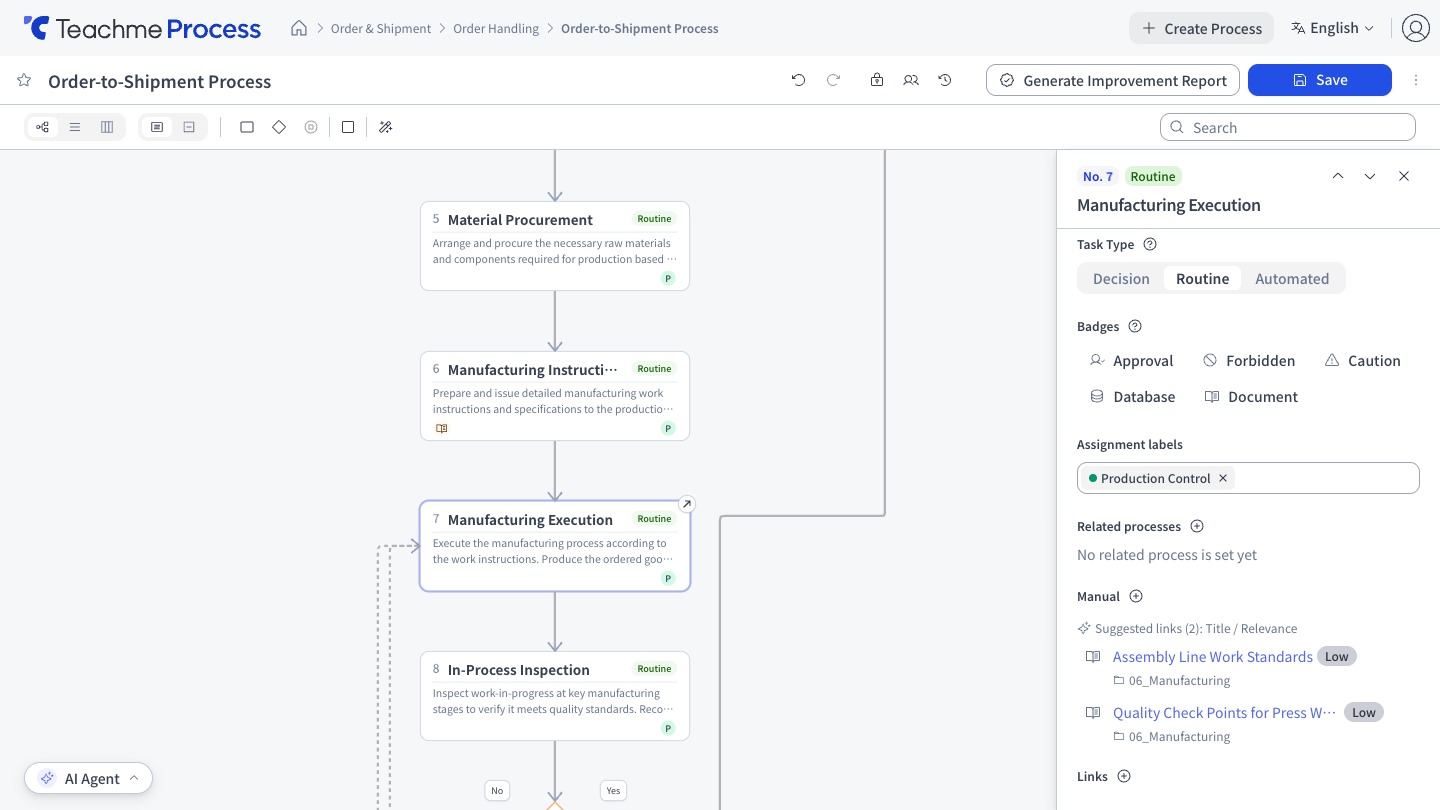
Teachme Biz Manuals that appear to be related to a given node are displayed as "Link Suggestions" in the Execution Node's detail sheet. These are presented by searching for relevant Manuals based on the Node Name, description, and Process Name, and can be added directly.
- Suggestions display a relevance level (High, Medium, or Low)
- Manuals already added to the node will not appear as suggestions
- Suggestions are displayed only in edit mode, when you have edit Permissions for the process, and when there are fewer than 10 Manuals / Links
- If Teachme Biz is not integrated, or if there are no Manuals in the integrated account, nothing will be displayed
Edge condition Labels
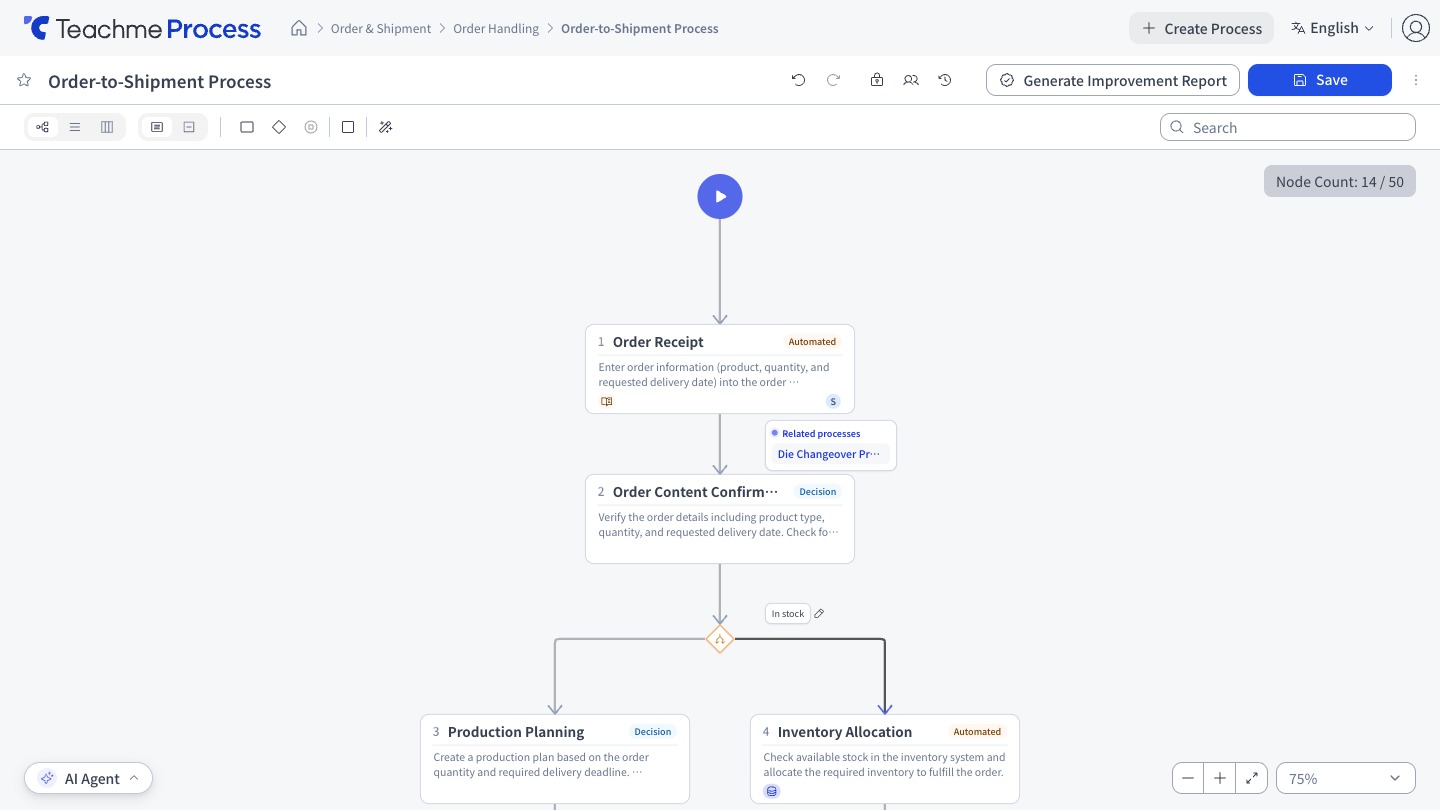
Edges coming out of a branch can have Labels set to indicate conditions. Labels are displayed near the source branch, and if they overlap with other nodes or Labels, they are automatically repositioned. Condition Labels cannot be edited in Swimlane view.
How to use
Edit a node name
https://teachme.jp/8/manuals/49771903
Edit a node description
https://teachme.jp/8/manuals/49771928
Set the duration of a node
https://teachme.jp/8/manuals/49771933
Show the longest and shortest paths
https://teachme.jp/8/manuals/51536355
Set the task type of a node (Decision, Routine, or Automated)
https://teachme.jp/8/manuals/49771935
Set assignment labels on a node
https://teachme.jp/8/manuals/49771936
Set badges (Approval, Forbidden, and others) on an execution node
https://teachme.jp/8/manuals/49771899
Add, edit, and delete manuals and links on an execution node
https://teachme.jp/8/manuals/49689536
Edit an edge label
https://teachme.jp/8/manuals/49771940