Processes can be viewed in three display modes, each with a corresponding download format. This article summarizes the types of views and download specifications.
Overview
You can switch between the following three views using the view switcher on the screen.
- Flow view…Process diagram. Represents the flow of steps using nodes and edges.
- List view…Displays nodes in a table format.
- Swimlane view…Displays nodes divided into lanes by assignment labels.
Specifications
Initial display
When you open a process, the most recently selected view is used as the initial display. If a URL specifies a particular view (e.g., via a link), that specification takes priority.
Download formats by view
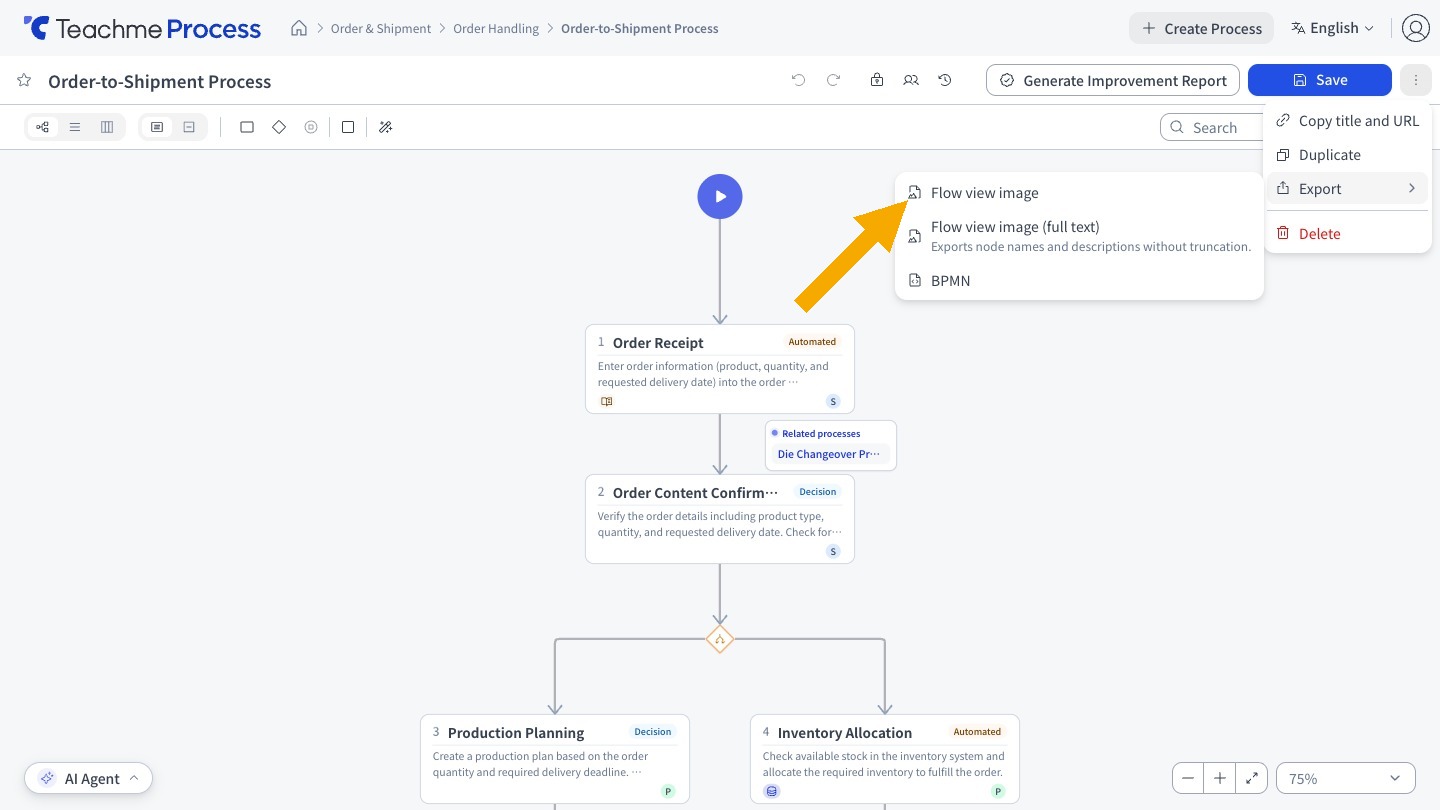
Downloads are performed from "Export" under "More actions" (︙).
The available items depend on the currently active view mode, and items not available for that view will not be displayed.
- Flow view…"Flow view image" (PNG; two types: standard and unabbreviated), "BPMN" (BPMN file)
- List view…"CSV" (CSV of the node list)
- Swimlane view…"Swimlane view image" (PNG; two types: standard and unabbreviated)
File name
The file name of an image consists of the process name followed by the view, node display mode, and whether abbreviation is applied.
The file name of a CSV is the process name, and the file name of a BPMN is the process name with .bpmn appended.
- Flow view image…"ProcessName_Flow_Simple_Abbreviated.png" or "ProcessName_Flow_Detailed_Abbreviated.png" (depending on the node display mode)
- Flow view image (unabbreviated)…"ProcessName_Flow_Unabbreviated.png"
- Swimlane view image…"ProcessName_Swimlane_Simple_Abbreviated.png" or "ProcessName_Swimlane_Detailed_Abbreviated.png"
- Swimlane view image (unabbreviated)…"ProcessName_Swimlane_Unabbreviated.png"
- For images and BPMN, spaces in the process name and symbols that cannot be used in file names (/ \ : * ? " < > |) are replaced with "_".
- For images with very long process names, the process name is truncated at the end to prevent the file name from becoming too long.
List view columns
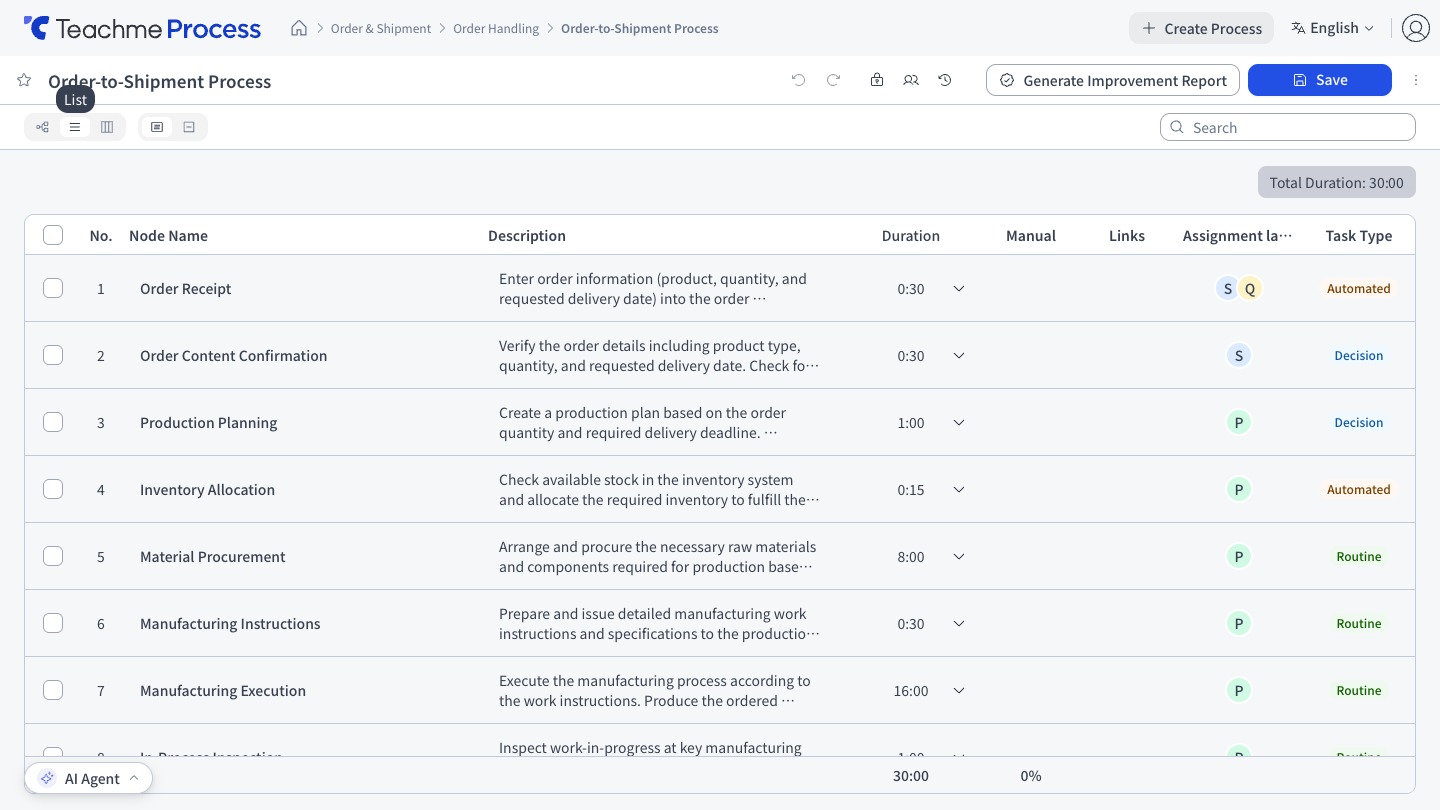
Columns are displayed in the following order: No. / Node Name / Description / Duration / Manual / Link / Assignment labels / Task Type.
The total duration and manual coverage are displayed at the bottom.
The "Description" column is displayed when the node display mode is set to "Detailed."
It is not displayed when set to "Simple."
CSV content
The node list CSV is output with the following 6 columns. The columns differ from the list view on screen.
No. / Node Name / Duration (h:mm) / Description / Assignment labels / Task Type
- The "Manual" and "Link" columns shown on screen are not included in the CSV.
- "Description" is included in the CSV regardless of the node display mode.
- Duration is output in the same "hours:minutes" format as on screen.
- Nodes with no duration set are output as blank.
- If a node has multiple assignment labels, they are output within a single cell separated by line breaks.
Image output
- Even if nodes or edges are selected, the selection state is not included in the image.
- In swimlane view, lane names are also included in the image.
- Images cannot be downloaded for a process that contains only a start node.
Unabbreviated images
"Flow view image (unabbreviated)" and "Swimlane view image (unabbreviated)" output information that is abbreviated on screen without abbreviation.
Standard images reflect the display as shown on screen.
If you export an image while the longest/shortest path is displayed, the path band is also included in the image.
- Node names and descriptions are output in full. On screen, descriptions are abbreviated after 2 lines.
- Assignment labels are output in full by name. On screen, they are displayed as icons.
- In swimlane view, long lane names are not abbreviated.
- The height of nodes changes to fit the content, so the layout may differ slightly from the on-screen arrangement. It is not affected by the zoom level or selection state on screen.
BPMN output
In flow view, you can download the process diagram as a BPMN 2.0 XML file (.bpmn).
Since it includes diagram coordinate information (BPMNDI), it can be opened with the same layout in external tools that support BPMN.
Included
- Start Node / End Node (startEvent / endEvent)
- Execution Node (task)…Node name. Descriptions and the titles and URLs of manuals and links are included as documentation.
- Branches (exclusiveGateway)
- Edges (sequenceFlow)…Condition labels are included as name.
- Shapes (textAnnotation)…Text
Not included
- Assignment labels, duration, task type, badges
- Swimlane lanes (arrangement of assignment labels)
The exported BPMN file can also be attached to an AI chat to reference its content (up to 0.5 MB per file).
Node display mode
Use "Detailed" or "Simple" in the toolbar to switch the node display mode.
In "Simple" mode, the task name is wrapped and displayed up to 3 lines.
Longest and shortest paths
In flow view, you can use "Longest/Shortest Path" in the toolbar to display the path with the longest total duration and the path with the shortest total duration from the start node to the end node.
The "longest" path is shown with a red band, and the "shortest" path is shown with a blue band.
This feature is not available in list view or swimlane view.
- All execution nodes must have a duration entered.
If any execution node has no duration entered, the reason is displayed instead of the path. - Return edges are excluded from the calculation.
- The calculation cannot be performed if there is no edge connecting the start node to the end node, or if there is a loop other than a return edge.
Notes on swimlane view
- The lane width in swimlane view is a fixed width based on the content. The layout of the on-screen display and the exported image are consistent.
- If there are nodes with no assignment labels set, an "Unassigned" lane is displayed on the far left.
- When there are two or more lanes, you can reorder lanes by dragging the lane heading or using the "Move left" / "Move right" options in the heading. The "Unassigned" lane is fixed to the far left. If a lane is too narrow to display the buttons, reorder by dragging.
- Reordering lanes is saved as the order of assignment labels if you have edit permissions (the process must be saved). If you only have view permissions, the reordering is temporary and on-screen only; it reverts to the original order upon reload.
How to use
Switch between the flow, list, and swimlane views
https://teachme.jp/8/manuals/49786559
Show the longest and shortest paths
https://teachme.jp/8/manuals/51536355
Zoom in and out, and fit the view to the screen
https://teachme.jp/8/manuals/49786518
Download the process diagram as an image or the node list as a CSV
https://teachme.jp/8/manuals/49819352
Reorder the lanes in the swimlane view
https://teachme.jp/8/manuals/50824569