In Teachme Process, the scope of access for each process is configured using two settings: "Organization-Wide Permission" and "User-Specific Permissions".
This article summarizes what each permission allows and how permissions are determined.
Overview
Process permissions are configured from "Permissions" in the header of the process detail screen.
To apply settings to multiple processes at once, select the processes from Processes or Favorites, then configure them from "Permissions Settings".
- Organization-Wide Permission…Grants permissions to all Members in the same organization at once
- User-Specific Permissions…Grants permissions individually to specific users only
These two can be used in combination.
Specifications
Organization-Wide Permission
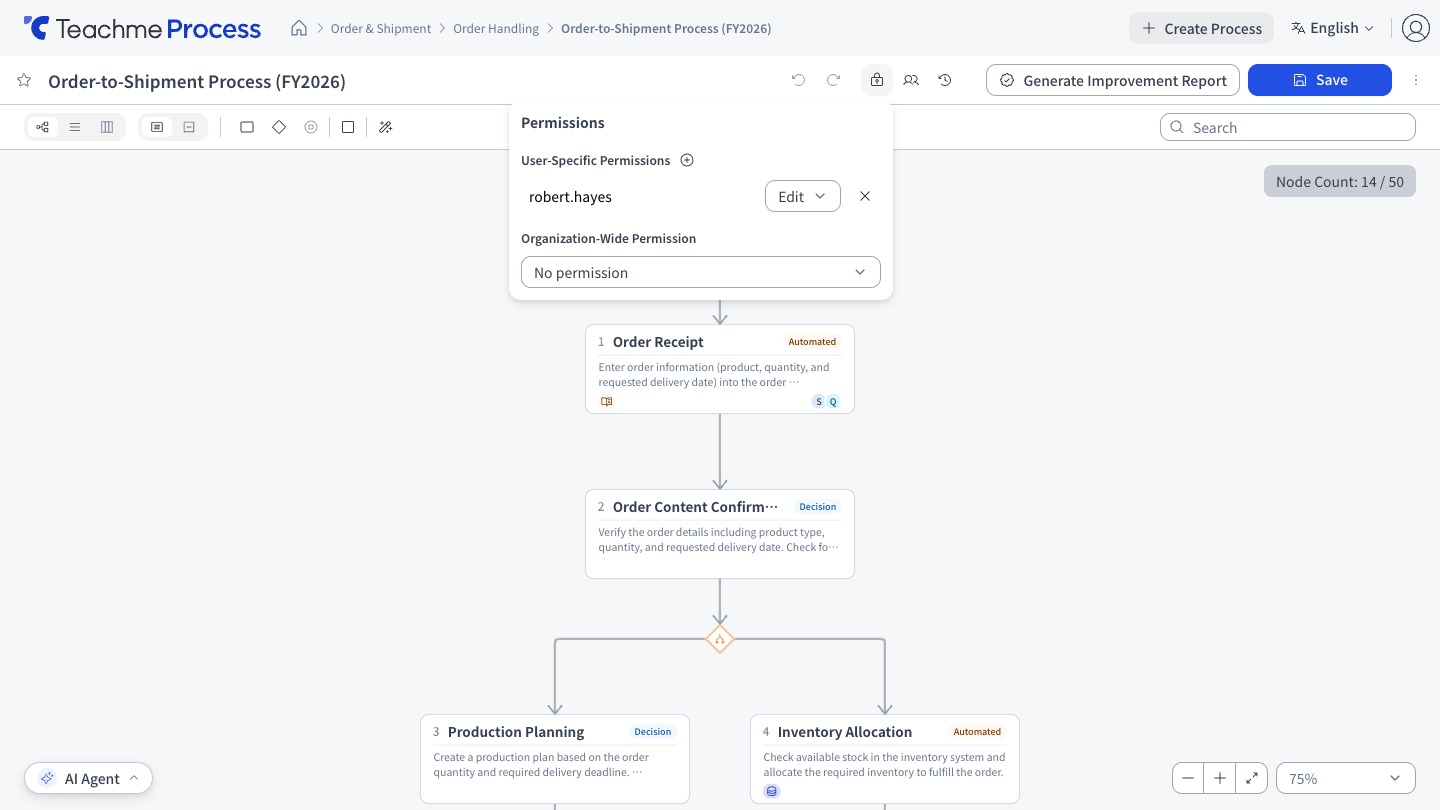
Choose from 3 options.
The default value is "No permission".
-
No permission…Access is not allowed.
Only users who have been granted User-Specific Permissions can access - View…View the process
- Edit…View, edit, share, delete, manage permissions, and manage Versions (same as "Edit" in User-Specific Permissions)
User-Specific Permissions
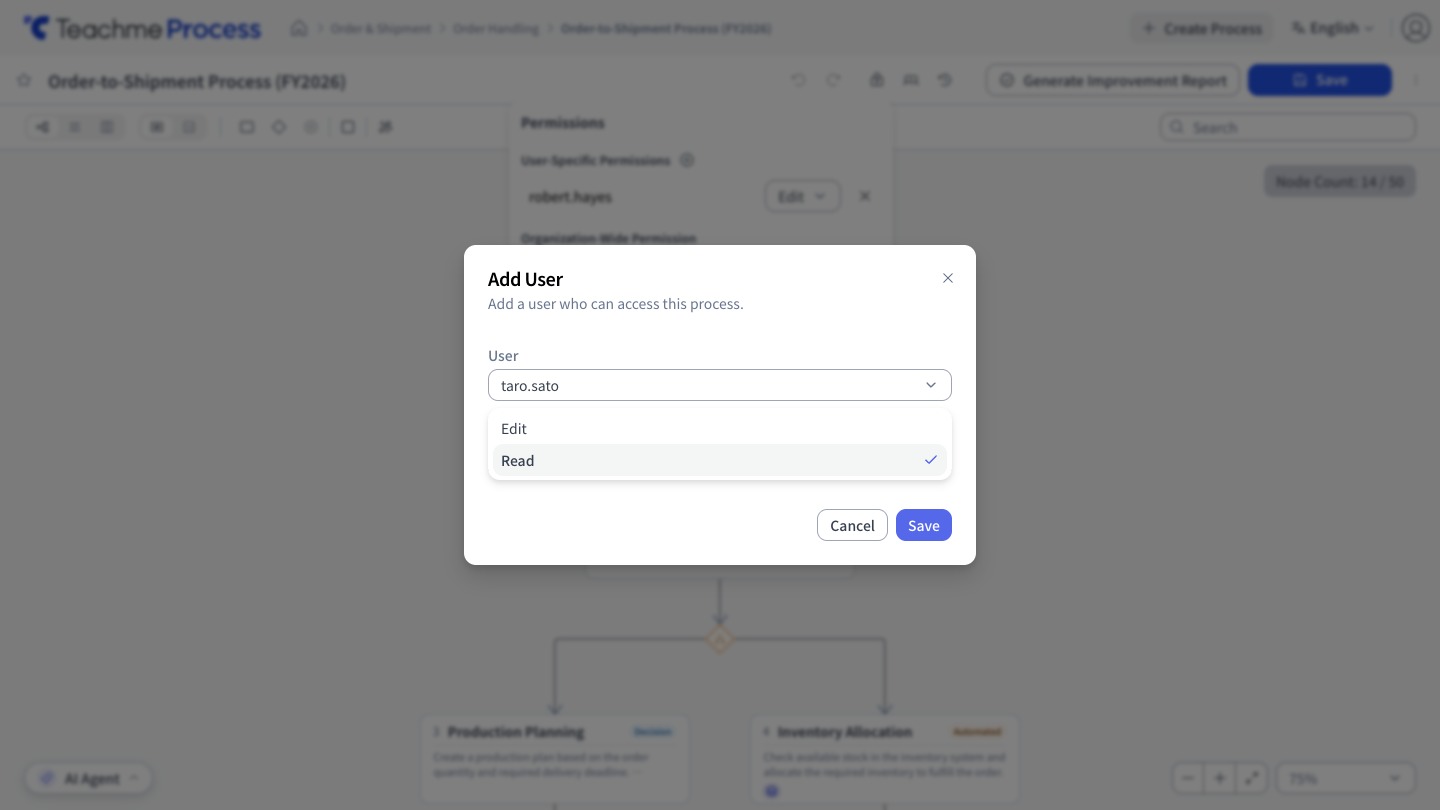
- Edit…View, edit, share, delete, manage permissions, and manage Versions
- View…View the process
Users are added by searching by name.
You can select up to 50 users at once and add them all with the same permission.
Users who have already been added will not appear as candidates when searched.
How Permissions Are Determined
If an action is permitted by either "Organization-Wide Permission" or "User-Specific Permissions", that action can be performed.
Both do not need to be satisfied.
Therefore, if the Organization-Wide Permission is set to "Edit", Members who have not been granted User-Specific Permissions can also edit.
If you want to allow only specific users to edit, set the Organization-Wide Permission to "No permission" or "View".
Restrictions
- A process must have at least one Editor. You cannot remove the last Editor or change their permission to View
- The creator's permission cannot be changed. The creator automatically becomes an Editor when the process is created
- In the User-Specific Permissions list, Deleted users are shown as "(removed)"
Configuring Multiple Processes at Once
Select processes by checking their checkboxes in Processes or Favorites, then click "Permissions Settings" to apply settings to all selected processes at once.
- Bulk actions are limited to changing the Organization-Wide Permission and adding users.
The default value for Organization-Wide Permission is "Do not change" - Up to 50 processes can be configured at once, and up to 50 users can be added
- Permissions for users who have already been added will not change
- You can only select processes for which you have Edit permission.
Processes for which you do not have Edit permission cannot be selected using the checkbox - Changing or removing permissions for already-added users, and External Publication, must be configured one at a time by opening each process
How to Use
Set permissions for multiple processes at once
https://teachme.jp/8/manuals/51768054
Change the organization-wide permission (none, view, or edit)
https://teachme.jp/8/manuals/49803234
Add a user to a process
https://teachme.jp/8/manuals/49818501
Change a user-specific permission on a process (edit or view)
https://teachme.jp/8/manuals/49818538
Remove a user from a process
https://teachme.jp/8/manuals/49818513