AI Agent is a feature that creates and edits processes based on instructions given in the AI Chat. This article summarizes what the AI Agent can do and the constraints on attachments.
Overview
Give instructions in natural language from the AI Chat on the process editing screen. You can also specify nodes by number, such as "Edit node 3."
The AI's thinking status and tool execution status are displayed on the screen, so you can see what it is doing at any time. When a response is complete, up to 3 suggested follow-up messages are proposed.
The AI Agent responds in the language corresponding to the screen's language setting.
Specifications
What the AI Agent Can Do
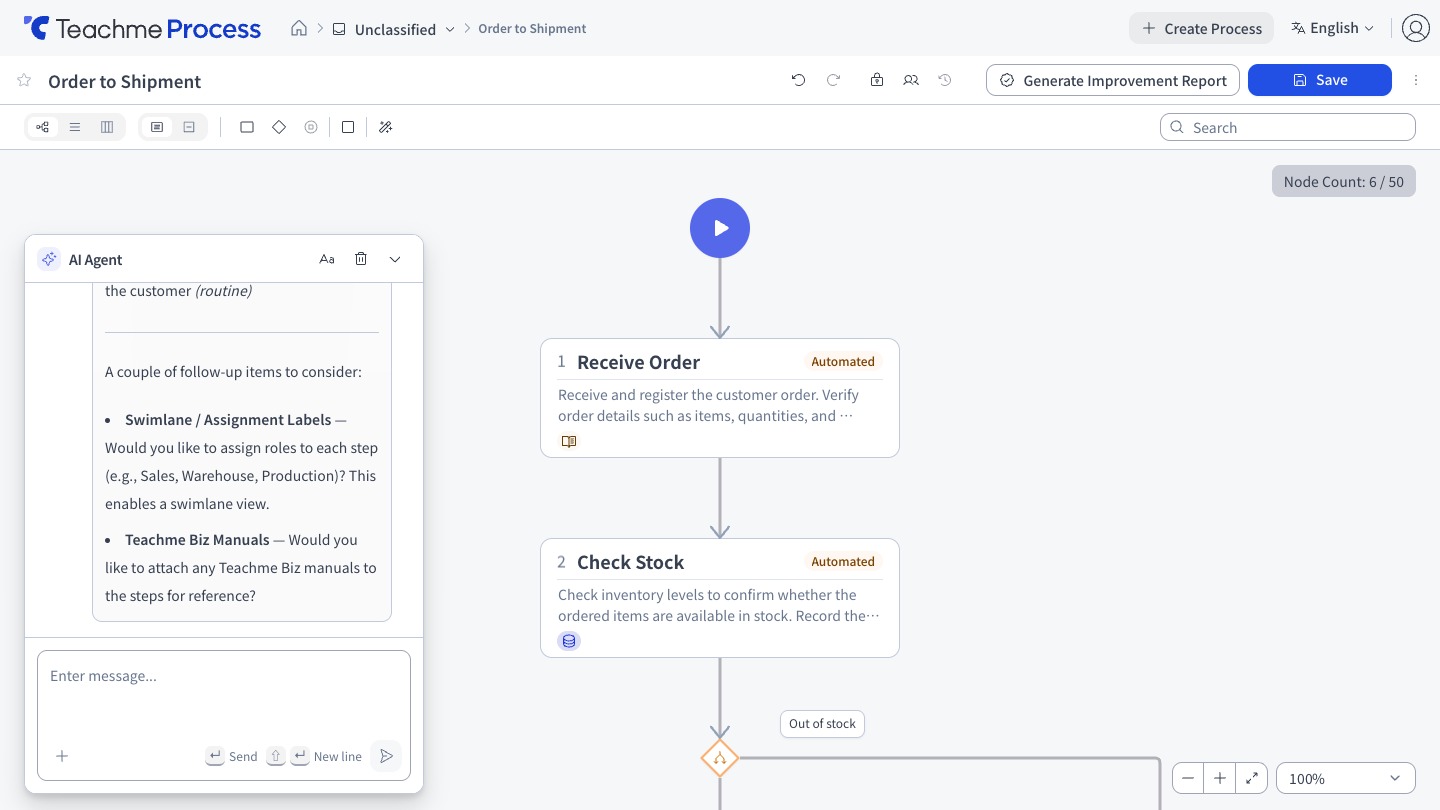
- Nodes…Add, update, delete, bulk move, and retrieve information
- Edges…Add, update (change or delete condition labels), and delete
- Assignment labels…Add, update, delete, and assign to nodes
- Manual & links…Add, update, delete, and reorder
- Process Name…Change (only when creating a new unsaved process)
- Process reference…Retrieve a list of accessible processes, get Related processes, and retrieve the structure of other processes
- Teachme Biz Manuals…Search and view content
Questions That Cannot Be Answered
For questions about Teachme Process where the AI Agent does not have information—such as pricing, specifications, or incidents—it will direct you to the Help Center rather than guessing.
About Changing the Process Name
The name of a process that has already been saved cannot be changed by the AI Agent. If a New process has not yet been saved, the AI can assign a name, but changes will not be accepted once the Title on the screen has been confirmed.
Scope of Process Reference
The AI Agent can only reference processes accessible to the currently signed-in users. The content of processes for which you do not have permission will not be referenced.
What Can Be Attached
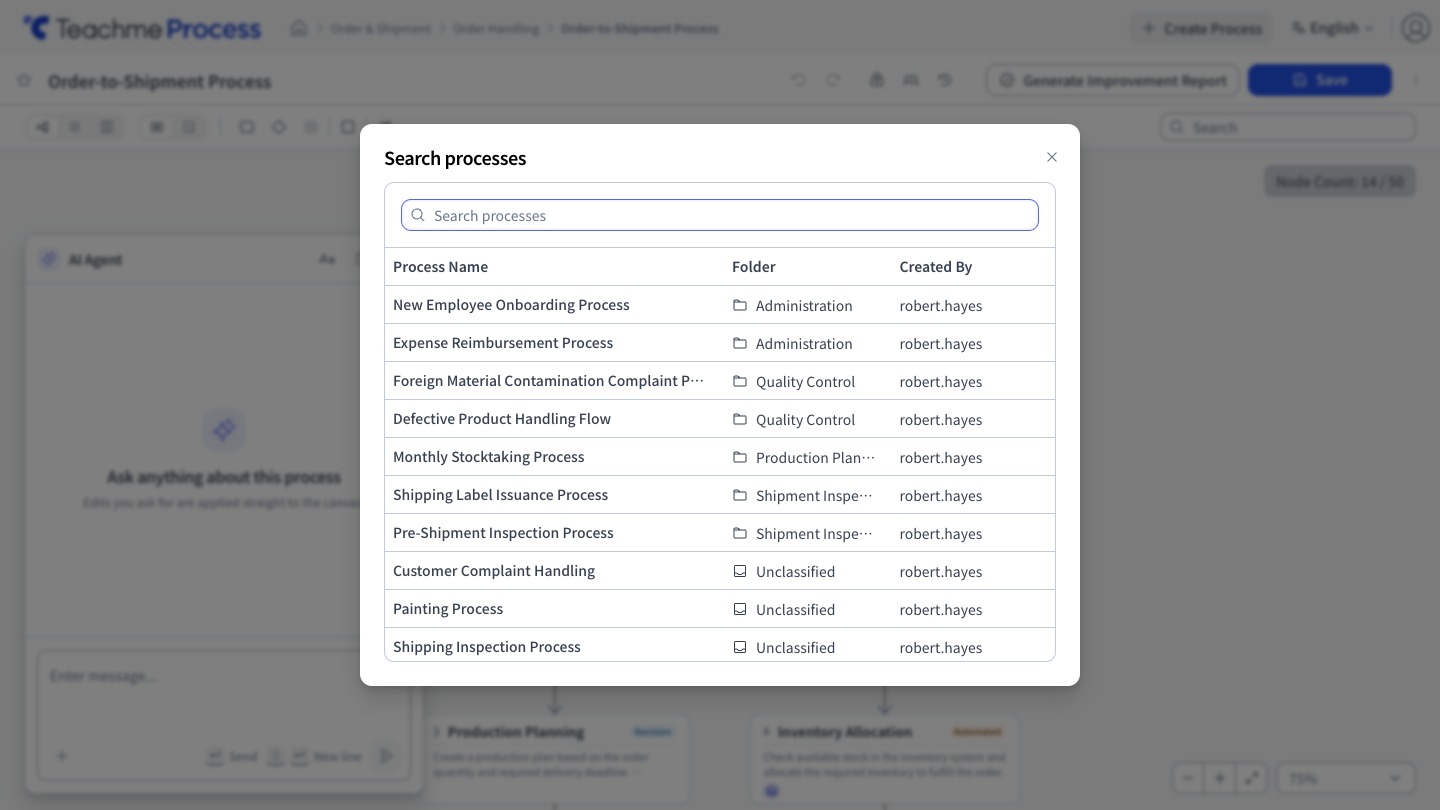
From the [+] in the Enter message field, you can attach files and Teachme Manuals or processes.
Files can also be attached by dragging and dropping them into the AI Chat.
Images such as screenshots can be attached by pasting them into the Enter message field.
Content copied from Excel or Word that includes text will be pasted as text.
When passing content as a file, please use drag & drop or the [+] button.
- Images…JPEG / PNG / GIF / WebP, up to 3MB per file. Width and height up to 8000px each
- PDF…Up to 10MB per file
- BPMN….bpmn / .bpmndi, up to 0.5MB per file. The total BPMN included in a single submission is also limited to 0.5MB
- Teachme Biz Manuals…Search by keyword, check the desired items, and attach by clicking "Add." Only Manuals you can view will be displayed
- Processes…Check the processes you can view and attach by clicking "Add." The process currently open will not be displayed
You can also check the supported formats and sizes by hovering your cursor over the items in the [+] menu.
For Manuals and processes, up to 5 items each can be attached at one time. Once the limit is reached, you will not be able to check items in the Search results.
- Attached files, Manuals, and processes can be individually removed before sending
- Sending will wait until the file has finished loading
- You cannot send with an attachment alone. Please Enter message before sending
Manual searches display results based on the relevance between the keyword and the content. Short terms such as "inspection" may not return results. If nothing is found, try a more specific term such as "visual inspection," or search by the Manual's Title.
History
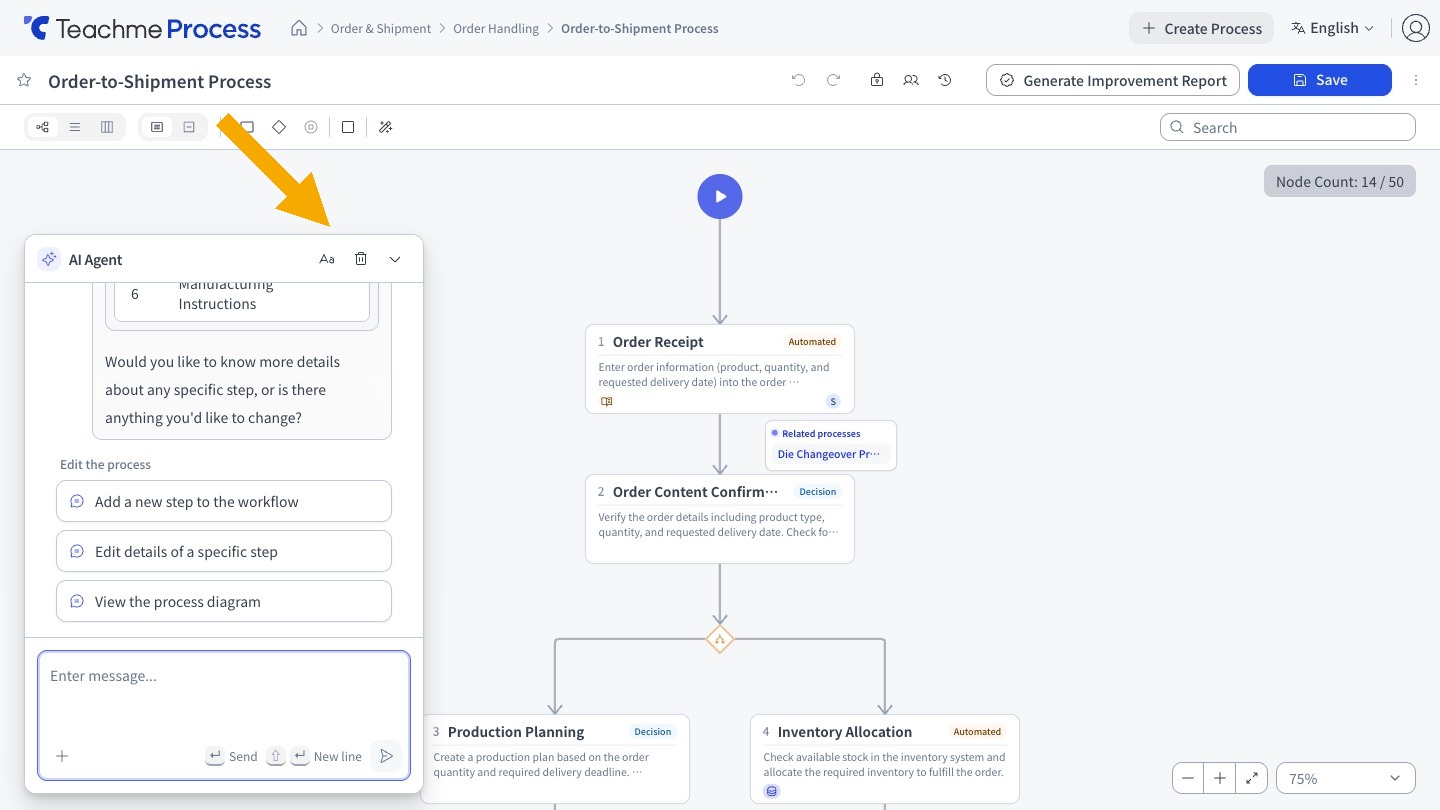
The AI Chat history can be cleared using the button without leaving the screen. The button cannot be used when the history has 0 items.
How to Use
Have the AI agent search for a Teachme Biz manual
https://teachme.jp/8/manuals/49820082
Ask the AI agent a question that refers to other processes
https://teachme.jp/8/manuals/49820062
Delete a file attached to the AI chat
https://teachme.jp/8/manuals/49820060
Clear the AI chat history
https://teachme.jp/8/manuals/49820059